> ## Documentation Index
> Fetch the complete documentation index at: https://docs.toapis.com/llms.txt
> Use this file to discover all available pages before exploring further.
# Integrations
## [](#prerequisites)Prerequisites
Before you begin, please ensure:
1. **ChatBox is installed**
Download and install the version suitable for your operating system from [ChatBox GitHub](https://github.com/Bin-Huang/chatbox) or visit [ChatBox Official Website](https://chatboxai.app/)
2. **ToAPIs API Key obtained**
Log in to [ToAPIs Console](https://toapis.com/console/token) to get your API key (starts with `sk-`)
**Tip:** If you don’t have an ToAPIs account yet, please register at [ToAPIs](https://toapis.com) and obtain an API key first.
## [](#step-1:-launch-chatbox-and-start-configuration)Step 1: Launch ChatBox and Start Configuration
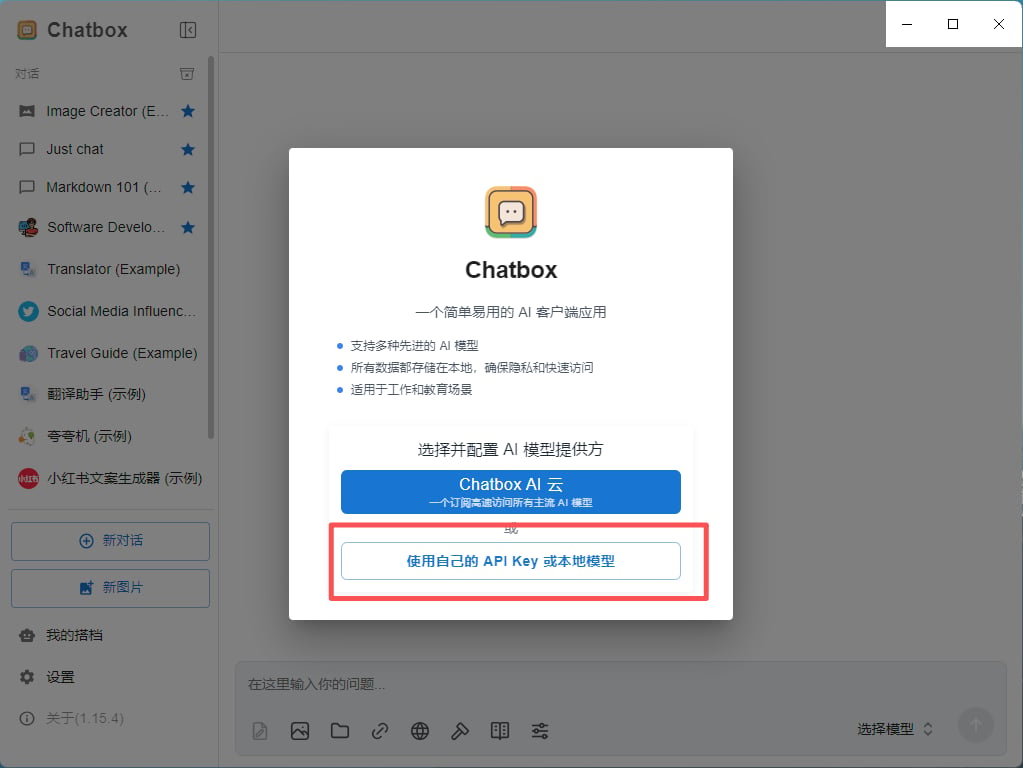
When launching ChatBox for the first time or adding a new AI provider:
1. Launch the ChatBox application
2. If it’s your first time, a configuration wizard will appear automatically
3. Click the **“Use your own API Key or local model”** button
4. If already configured, click the **⚙️ Settings** icon in the bottom left corner, or use the shortcut `Ctrl+,` (Windows/Linux) / `Cmd+,` (macOS)
 ## [](#step-2:-configure-ToAPIs-api)Step 2: Configure ToAPIs API
### [](#2-1-select-ai-model-provider)2.1 Select AI Model Provider
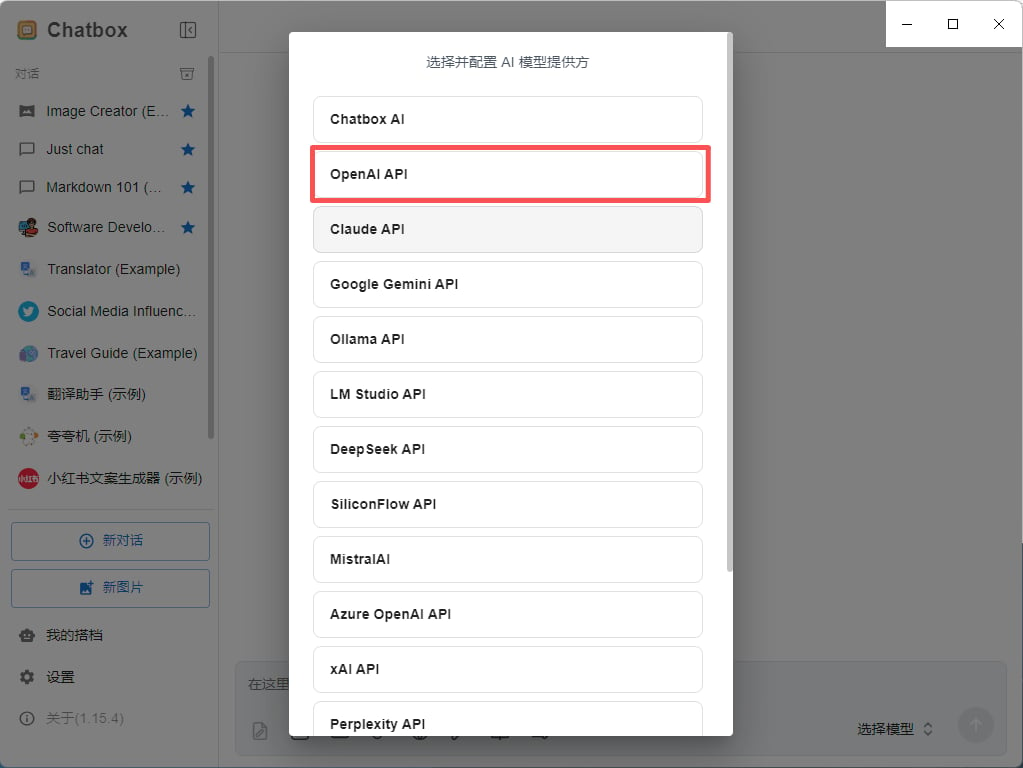
In the settings page:
1. Find the **AI Provider** setting
2. Select **OpenAI API** (for GPT series models), **Claude API** (for Claude series models), or **Gemini API** (for Gemini series models) from the dropdown menu
## [](#step-2:-configure-ToAPIs-api)Step 2: Configure ToAPIs API
### [](#2-1-select-ai-model-provider)2.1 Select AI Model Provider
In the settings page:
1. Find the **AI Provider** setting
2. Select **OpenAI API** (for GPT series models), **Claude API** (for Claude series models), or **Gemini API** (for Gemini series models) from the dropdown menu
 ### [](#2-2-configure-api-information)2.2 Configure API Information
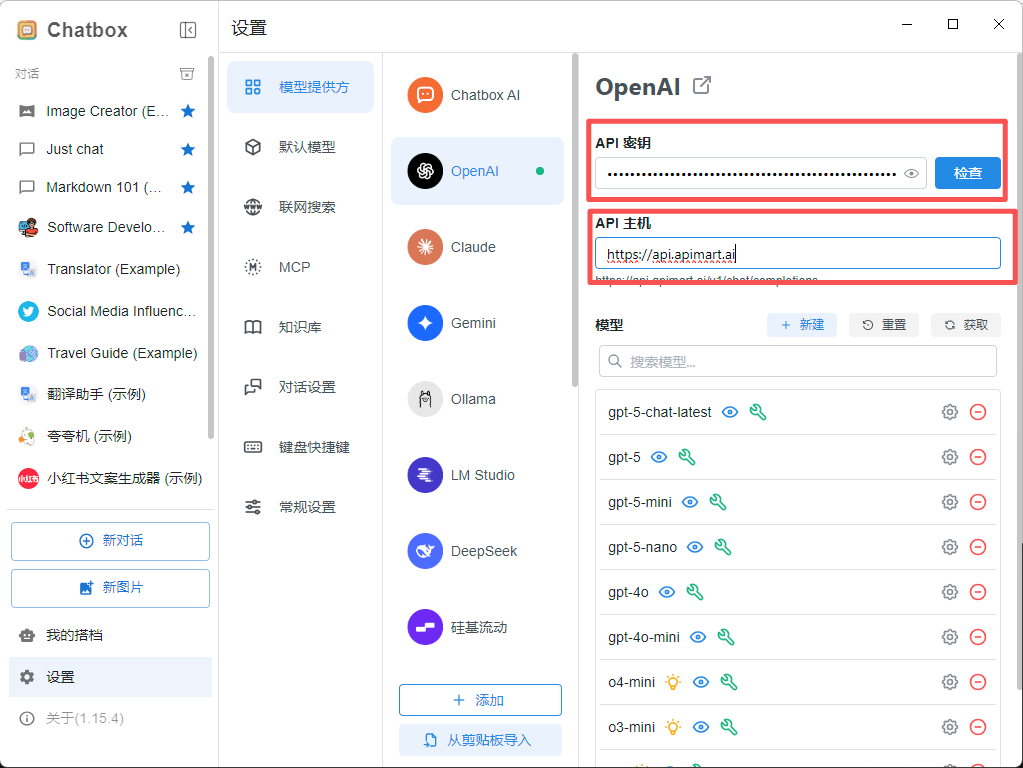
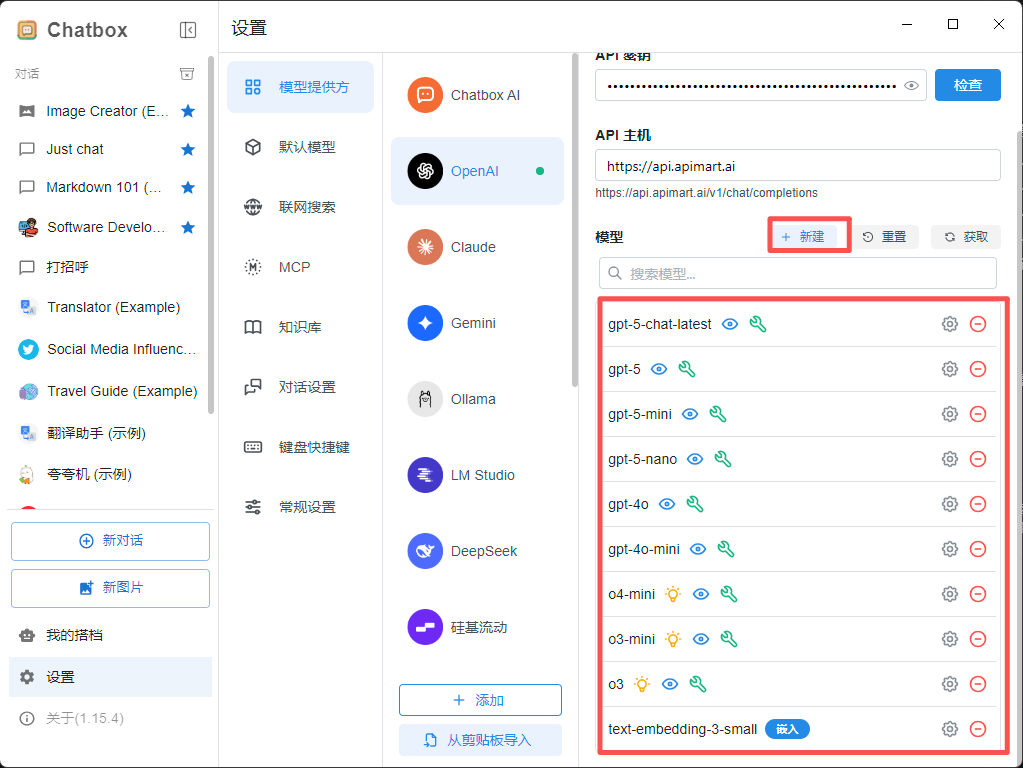
After selecting OpenAI API, fill in the following configuration:
| Field | Value |
| ------------------------------ | --------------------------------------- |
| **API Key** | Your ToAPIs API key (`sk-xxxxxxxxxxxx`) |
| **API Host** or **API Domain** | `https://toapis.com` |
### [](#2-2-configure-api-information)2.2 Configure API Information
After selecting OpenAI API, fill in the following configuration:
| Field | Value |
| ------------------------------ | --------------------------------------- |
| **API Key** | Your ToAPIs API key (`sk-xxxxxxxxxxxx`) |
| **API Host** or **API Domain** | `https://toapis.com` |
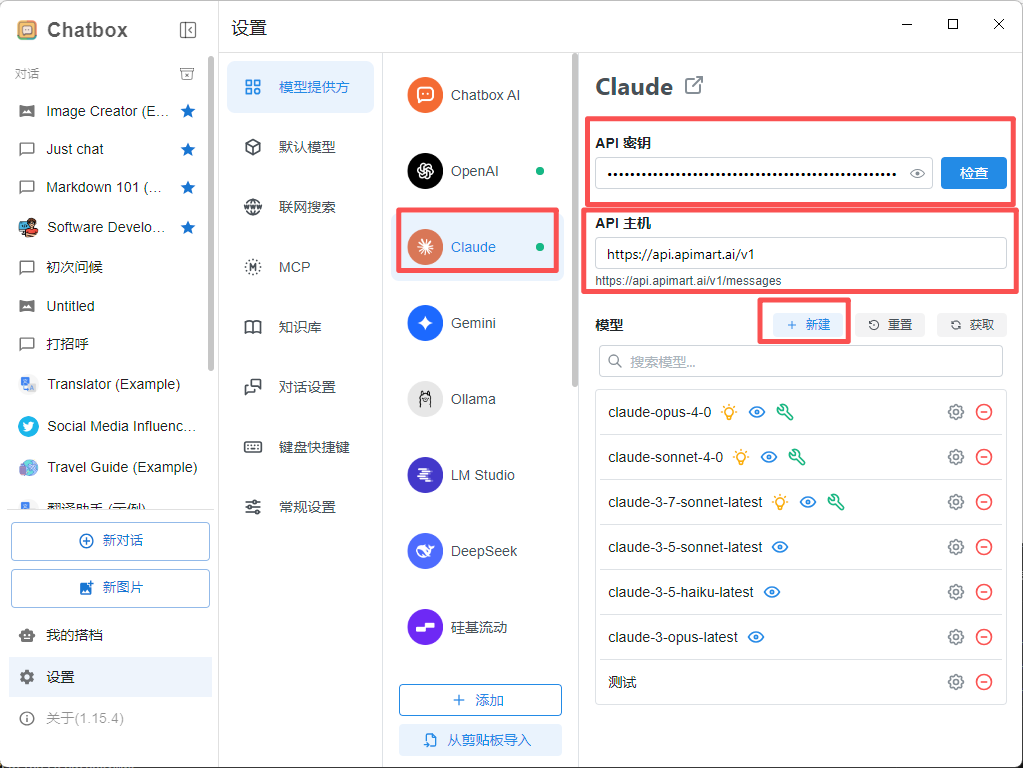
 After selecting Claude API, fill in the following configuration:
| Field | Value |
| ------------------------------ | --------------------------------------- |
| **API Key** | Your ToAPIs API key (`sk-xxxxxxxxxxxx`) |
| **API Host** or **API Domain** | `https://toapis.com/v1` |
After selecting Claude API, fill in the following configuration:
| Field | Value |
| ------------------------------ | --------------------------------------- |
| **API Key** | Your ToAPIs API key (`sk-xxxxxxxxxxxx`) |
| **API Host** or **API Domain** | `https://toapis.com/v1` |
 After selecting Gemini API, fill in the following configuration:
| Field | Value |
| ------------------------------ | --------------------------------------- |
| **API Key** | Your ToAPIs API key (`sk-xxxxxxxxxxxx`) |
| **API Host** or **API Domain** | `https://toapis.com/` |
After selecting Gemini API, fill in the following configuration:
| Field | Value |
| ------------------------------ | --------------------------------------- |
| **API Key** | Your ToAPIs API key (`sk-xxxxxxxxxxxx`) |
| **API Host** or **API Domain** | `https://toapis.com/` |
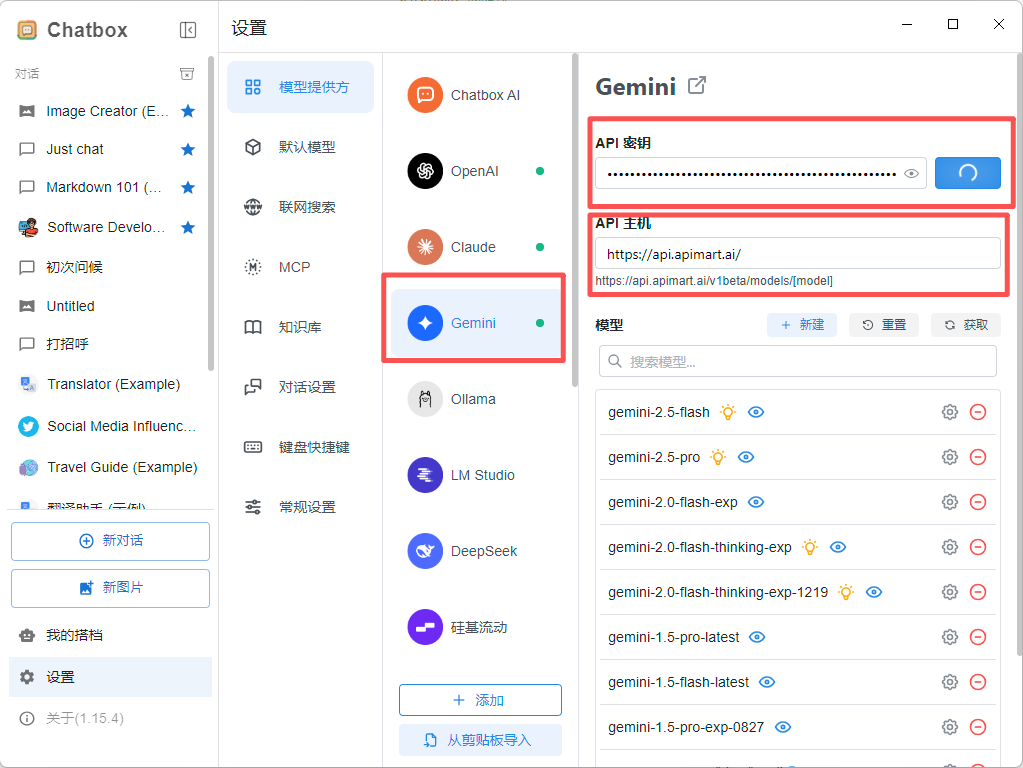 **Important:**
* When using OpenAI API, API Host should be `https://toapis.com` (without `/v1` suffix)
* When using Claude API, API Host should be `https://toapis.com/v1` (with `/v1` suffix)
* When using Gemini API, API Host should be `https://toapis.com/` (without `/v1` suffix)
* API Key must be obtained from ToAPIs console and start with `sk-`
* Ensure your API key has sufficient balance
### [](#2-3-select-model)2.3 Select Model
After configuration, select the model you want to use from the **Model** dropdown:
**Recommended Models:**
| Model Name | Model ID | Features |
| ----------------- | ------------------------------- | ------------------------ |
| GPT-5 | `gpt-5` | Latest and most powerful |
| GPT-4o | `gpt-4o` or `chatgpt-4o-latest` | High-quality chat |
| GPT-4o Mini | `gpt-4o-mini` | Fast and economical |
| Claude Sonnet 4.5 | `claude-sonnet-4-5-20250929` | Excellent for code |
| Claude Haiku 4.5 | `claude-haiku-4-5-20251001` | Fast response |
| Gemini 2.0 Flash | `gemini-2.0-flash-exp` | Multimodal support |
\*\*Special Instructions for Using Claude Models:\*\*If you choose to use Claude models (such as `claude-sonnet-4-5-20250929` or `claude-haiku-4-5-20251001`), you need the following additional configuration:
1. **Switch to Claude API Provider**:
* Change the **AI Provider** to **Claude API** in settings
* Keep API Host as `https://toapis.com/v1`
* Use your ToAPIs API key (`sk-xxxxxxxxxxxx`)
2. **Or Add Custom Request Headers** (if using OpenAI API provider):
* Some versions of ChatBox support adding custom Headers
* Add the request header in advanced settings: `anthropic-version: 2023-06-01`
**Recommended Approach:** Use **OpenAI API** for GPT series models, **Claude API** for Claude series models, and **Gemini API** for Gemini series models.
**Important:**
* When using OpenAI API, API Host should be `https://toapis.com` (without `/v1` suffix)
* When using Claude API, API Host should be `https://toapis.com/v1` (with `/v1` suffix)
* When using Gemini API, API Host should be `https://toapis.com/` (without `/v1` suffix)
* API Key must be obtained from ToAPIs console and start with `sk-`
* Ensure your API key has sufficient balance
### [](#2-3-select-model)2.3 Select Model
After configuration, select the model you want to use from the **Model** dropdown:
**Recommended Models:**
| Model Name | Model ID | Features |
| ----------------- | ------------------------------- | ------------------------ |
| GPT-5 | `gpt-5` | Latest and most powerful |
| GPT-4o | `gpt-4o` or `chatgpt-4o-latest` | High-quality chat |
| GPT-4o Mini | `gpt-4o-mini` | Fast and economical |
| Claude Sonnet 4.5 | `claude-sonnet-4-5-20250929` | Excellent for code |
| Claude Haiku 4.5 | `claude-haiku-4-5-20251001` | Fast response |
| Gemini 2.0 Flash | `gemini-2.0-flash-exp` | Multimodal support |
\*\*Special Instructions for Using Claude Models:\*\*If you choose to use Claude models (such as `claude-sonnet-4-5-20250929` or `claude-haiku-4-5-20251001`), you need the following additional configuration:
1. **Switch to Claude API Provider**:
* Change the **AI Provider** to **Claude API** in settings
* Keep API Host as `https://toapis.com/v1`
* Use your ToAPIs API key (`sk-xxxxxxxxxxxx`)
2. **Or Add Custom Request Headers** (if using OpenAI API provider):
* Some versions of ChatBox support adding custom Headers
* Add the request header in advanced settings: `anthropic-version: 2023-06-01`
**Recommended Approach:** Use **OpenAI API** for GPT series models, **Claude API** for Claude series models, and **Gemini API** for Gemini series models.
 **Performance Recommendations:**
* 💰 **Cost-effective:** `gpt-4o-mini`, `claude-haiku-4-5-20251001`
* 🚀 **High-performance:** `gpt-5`, `gpt-4o`, `claude-sonnet-4-5-20250929`
* ⚡ **Fast response:** `gemini-2.0-flash-exp`, `gpt-4o-mini`
## [](#step-3:-start-using)Step 3: Start Using
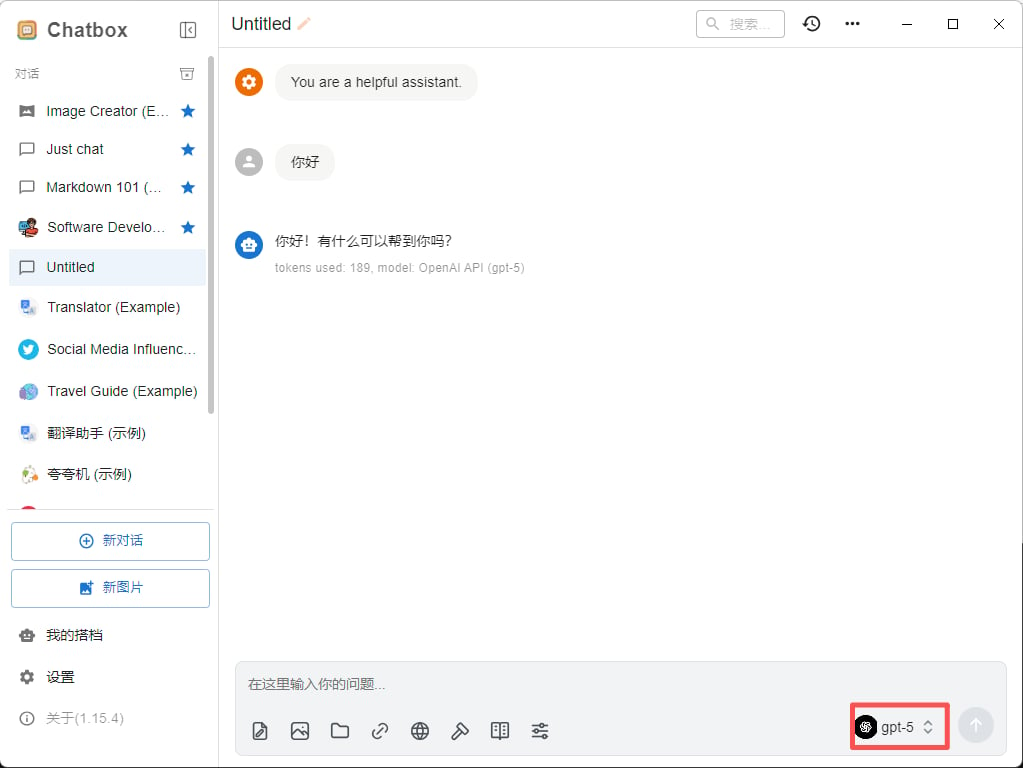
After configuration, you can start using ChatBox to chat with AI:
1. Return to the main interface
2. Type your question or requirement in the input box
3. Press `Enter` or click the send button
4. AI will generate a reply using ToAPIs’s models
**Performance Recommendations:**
* 💰 **Cost-effective:** `gpt-4o-mini`, `claude-haiku-4-5-20251001`
* 🚀 **High-performance:** `gpt-5`, `gpt-4o`, `claude-sonnet-4-5-20250929`
* ⚡ **Fast response:** `gemini-2.0-flash-exp`, `gpt-4o-mini`
## [](#step-3:-start-using)Step 3: Start Using
After configuration, you can start using ChatBox to chat with AI:
1. Return to the main interface
2. Type your question or requirement in the input box
3. Press `Enter` or click the send button
4. AI will generate a reply using ToAPIs’s models
 ### [](#adjust-model-parameters-optional)Adjust Model Parameters (Optional)
You can adjust the following parameters as needed:
| Parameter | Description | Recommended Value |
| --------------- | -------------------------- | ------------------------------ |
| **Temperature** | Controls output randomness | 0.7 (creative) / 0.3 (precise) |
| **Max Tokens** | Maximum output length | 2000-4000 |
| **Top P** | Nucleus sampling parameter | 0.9 |
## [](#advanced-features)Advanced Features
### [](#multi-session-management)Multi-Session Management
ChatBox supports creating multiple conversation sessions:
1. Click the **New Chat** button
2. Create independent sessions for different tasks
3. Switch between conversations in the left session list
### [](#save-and-export-conversations)Save and Export Conversations
1. Right-click on a conversation session
2. Select **Export** option
3. Export as Markdown, JSON, or other formats
### [](#using-prompt-templates)Using Prompt Templates
1. Find **Prompts** settings in the settings menu
2. Save commonly used prompt templates
3. Quickly invoke preset prompts in conversations
## [](#faq)FAQ
### [](#q1:-cannot-connect-to-ToAPIs-service)Q1: Cannot connect to ToAPIs service?
**Solution:**
1. **Check API Host**:
* Ensure it’s `https://toapis.com`
* Don’t add `/v1` or other paths
2. **Verify API Key**:
* Confirm API Key starts with `sk-`
* Check if the key is valid in [ToAPIs Console](https://toapis.com/console/token)
3. **Check Network Connection**:
* Ensure you can access `https://toapis.com`
* You may need to configure a proxy if in China
### [](#q2:-ToAPIs-models-not-showing-in-model-list)Q2: ToAPIs models not showing in model list?
**Solution:**
1. **Manually Enter Model Name**:
* Directly type the model ID in the model input box
* For example: `gpt-4o`, `gpt-4o-mini`, `claude-sonnet-4-5-20250929`
2. **Refresh Model List**:
* Restart ChatBox application
* Reconfigure API information
### [](#q3:-error-messages-during-conversation)Q3: Error messages during conversation?
**Common errors and solutions:**
| Error Message | Cause | Solution |
| --------------------------- | ---------------------------- | ------------------------------------------ |
| `401 Unauthorized` | Invalid or expired API Key | Re-obtain API Key and update configuration |
| `429 Too Many Requests` | Request rate limit exceeded | Wait a moment and retry |
| `500 Internal Server Error` | Temporary server issue | Wait a few minutes and retry |
| `insufficient_quota` | Insufficient account balance | Top up in the console |
### [](#q4:-how-to-view-api-usage-and-costs)Q4: How to view API usage and costs?
Log in to [ToAPIs Console](https://toapis.com/console) to view:
* 📊 API call statistics
* 💰 Cost details
* 📈 Usage trend charts
* 🔍 Detailed request logs
### [](#q5:-which-platforms-does-chatbox-support)Q5: Which platforms does ChatBox support?
ChatBox supports multiple platforms:
* 🪟 **Windows** - Windows 10/11
* 🍎 **macOS** - macOS 10.15+
* 🐧 **Linux** - Major distributions
* 🌐 **Web** - Browser version
## [](#usage-tips)Usage Tips
### [](#1-keyboard-shortcuts)1. Keyboard Shortcuts
Utilize ChatBox keyboard shortcuts for efficiency:
| Shortcut | Function |
| ------------------ | -------------------- |
| `Ctrl/Cmd + Enter` | Send message |
| `Ctrl/Cmd + N` | New chat |
| `Ctrl/Cmd + K` | Search conversations |
| `Ctrl/Cmd + ,` | Open settings |
| `Ctrl/Cmd + /` | Show keyboard help |
### [](#2-optimize-prompts)2. Optimize Prompts
Write better prompts for better responses:
**❌ Poor Prompt:**
Copy
```shiki theme={null}
Write code for me
```
**✅ Good Prompt:**
Copy
```shiki theme={null}
Please help me write a Python function that:
1. Takes a list of strings as input
2. Filters out strings shorter than 3 characters
3. Returns results sorted alphabetically
Please include detailed comments and usage examples
```
### [](#3-leverage-conversation-history)3. Leverage Conversation History
ChatBox saves conversation history:
* AI remembers context from the current session
* Can continue asking based on previous responses
* Suitable for deep discussions and iterations
### [](#4-switch-models)4. Switch Models
Switch to appropriate models for different tasks:
* **Writing tasks** - Use `gpt-4o` or `claude-sonnet-4-5`
* **Coding tasks** - Use `claude-sonnet-4-5`
* **Quick Q\&A** - Use `gpt-4o-mini`
* **Multimodal** - Use `gemini-2.0-flash-exp`
## [](#features)Features
Using ChatBox + ToAPIs, you can:
* 💬 **Smooth Conversations** - Real-time streaming output for smoother experience
* 🎯 **Multi-Session Management** - Manage multiple independent conversations simultaneously
* 💾 **Local Storage** - Conversation records saved locally to protect privacy
* 📤 **Export Conversations** - Support exporting in multiple formats
* 🎨 **Clean Interface** - Simple and beautiful user interface
* 🔒 **Open Source & Free** - Completely open source and free to use
* 🌍 **Cross-Platform** - Supports Windows, macOS, Linux
* 🚀 **Excellent Performance** - Lightweight application, runs smoothly
## [](#support-&-help)Support & Help
If you encounter any issues:
* 📚 [ToAPIs Documentation](https://docs.toapis.com)
* 📚 [ChatBox GitHub](https://github.com/Bin-Huang/chatbox)
* 💬 [Discord Community](https://discord.gg/hvnszCrJ73)
* 🐦 [Twitter @toapisai](https://x.com/toapisai)
* 📧 Technical Support: [zhihong@toapis.com](mailto:zhihong@toapis.com)
***
Register for ToAPIs, get your API key, and start your AI journey in ChatBox.
Configure another OpenAI-compatible client.
### [](#adjust-model-parameters-optional)Adjust Model Parameters (Optional)
You can adjust the following parameters as needed:
| Parameter | Description | Recommended Value |
| --------------- | -------------------------- | ------------------------------ |
| **Temperature** | Controls output randomness | 0.7 (creative) / 0.3 (precise) |
| **Max Tokens** | Maximum output length | 2000-4000 |
| **Top P** | Nucleus sampling parameter | 0.9 |
## [](#advanced-features)Advanced Features
### [](#multi-session-management)Multi-Session Management
ChatBox supports creating multiple conversation sessions:
1. Click the **New Chat** button
2. Create independent sessions for different tasks
3. Switch between conversations in the left session list
### [](#save-and-export-conversations)Save and Export Conversations
1. Right-click on a conversation session
2. Select **Export** option
3. Export as Markdown, JSON, or other formats
### [](#using-prompt-templates)Using Prompt Templates
1. Find **Prompts** settings in the settings menu
2. Save commonly used prompt templates
3. Quickly invoke preset prompts in conversations
## [](#faq)FAQ
### [](#q1:-cannot-connect-to-ToAPIs-service)Q1: Cannot connect to ToAPIs service?
**Solution:**
1. **Check API Host**:
* Ensure it’s `https://toapis.com`
* Don’t add `/v1` or other paths
2. **Verify API Key**:
* Confirm API Key starts with `sk-`
* Check if the key is valid in [ToAPIs Console](https://toapis.com/console/token)
3. **Check Network Connection**:
* Ensure you can access `https://toapis.com`
* You may need to configure a proxy if in China
### [](#q2:-ToAPIs-models-not-showing-in-model-list)Q2: ToAPIs models not showing in model list?
**Solution:**
1. **Manually Enter Model Name**:
* Directly type the model ID in the model input box
* For example: `gpt-4o`, `gpt-4o-mini`, `claude-sonnet-4-5-20250929`
2. **Refresh Model List**:
* Restart ChatBox application
* Reconfigure API information
### [](#q3:-error-messages-during-conversation)Q3: Error messages during conversation?
**Common errors and solutions:**
| Error Message | Cause | Solution |
| --------------------------- | ---------------------------- | ------------------------------------------ |
| `401 Unauthorized` | Invalid or expired API Key | Re-obtain API Key and update configuration |
| `429 Too Many Requests` | Request rate limit exceeded | Wait a moment and retry |
| `500 Internal Server Error` | Temporary server issue | Wait a few minutes and retry |
| `insufficient_quota` | Insufficient account balance | Top up in the console |
### [](#q4:-how-to-view-api-usage-and-costs)Q4: How to view API usage and costs?
Log in to [ToAPIs Console](https://toapis.com/console) to view:
* 📊 API call statistics
* 💰 Cost details
* 📈 Usage trend charts
* 🔍 Detailed request logs
### [](#q5:-which-platforms-does-chatbox-support)Q5: Which platforms does ChatBox support?
ChatBox supports multiple platforms:
* 🪟 **Windows** - Windows 10/11
* 🍎 **macOS** - macOS 10.15+
* 🐧 **Linux** - Major distributions
* 🌐 **Web** - Browser version
## [](#usage-tips)Usage Tips
### [](#1-keyboard-shortcuts)1. Keyboard Shortcuts
Utilize ChatBox keyboard shortcuts for efficiency:
| Shortcut | Function |
| ------------------ | -------------------- |
| `Ctrl/Cmd + Enter` | Send message |
| `Ctrl/Cmd + N` | New chat |
| `Ctrl/Cmd + K` | Search conversations |
| `Ctrl/Cmd + ,` | Open settings |
| `Ctrl/Cmd + /` | Show keyboard help |
### [](#2-optimize-prompts)2. Optimize Prompts
Write better prompts for better responses:
**❌ Poor Prompt:**
Copy
```shiki theme={null}
Write code for me
```
**✅ Good Prompt:**
Copy
```shiki theme={null}
Please help me write a Python function that:
1. Takes a list of strings as input
2. Filters out strings shorter than 3 characters
3. Returns results sorted alphabetically
Please include detailed comments and usage examples
```
### [](#3-leverage-conversation-history)3. Leverage Conversation History
ChatBox saves conversation history:
* AI remembers context from the current session
* Can continue asking based on previous responses
* Suitable for deep discussions and iterations
### [](#4-switch-models)4. Switch Models
Switch to appropriate models for different tasks:
* **Writing tasks** - Use `gpt-4o` or `claude-sonnet-4-5`
* **Coding tasks** - Use `claude-sonnet-4-5`
* **Quick Q\&A** - Use `gpt-4o-mini`
* **Multimodal** - Use `gemini-2.0-flash-exp`
## [](#features)Features
Using ChatBox + ToAPIs, you can:
* 💬 **Smooth Conversations** - Real-time streaming output for smoother experience
* 🎯 **Multi-Session Management** - Manage multiple independent conversations simultaneously
* 💾 **Local Storage** - Conversation records saved locally to protect privacy
* 📤 **Export Conversations** - Support exporting in multiple formats
* 🎨 **Clean Interface** - Simple and beautiful user interface
* 🔒 **Open Source & Free** - Completely open source and free to use
* 🌍 **Cross-Platform** - Supports Windows, macOS, Linux
* 🚀 **Excellent Performance** - Lightweight application, runs smoothly
## [](#support-&-help)Support & Help
If you encounter any issues:
* 📚 [ToAPIs Documentation](https://docs.toapis.com)
* 📚 [ChatBox GitHub](https://github.com/Bin-Huang/chatbox)
* 💬 [Discord Community](https://discord.gg/hvnszCrJ73)
* 🐦 [Twitter @toapisai](https://x.com/toapisai)
* 📧 Technical Support: [zhihong@toapis.com](mailto:zhihong@toapis.com)
***
Register for ToAPIs, get your API key, and start your AI journey in ChatBox.
Configure another OpenAI-compatible client.